




Corporate Lock Screen Software for High-Visibility Internal Communication
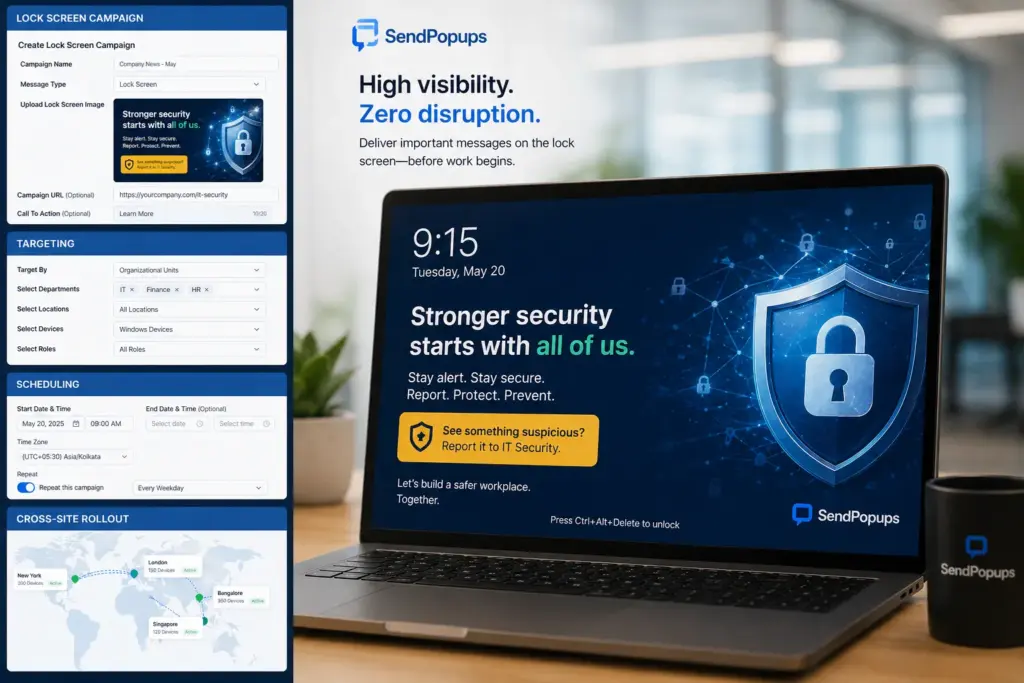
Use SendPopups corporate lock screen messaging to place important internal communications in front of employees before they sign in or when devices re-lock after idle time. It is a powerful visual channel for company-wide messages that need strong visibility without interrupting active work.
Ideal for company news, change communication, incident awareness, event reminders, compliance messaging, and behavior-reinforcement campaigns.
What Is a Corporate Lock Screen?
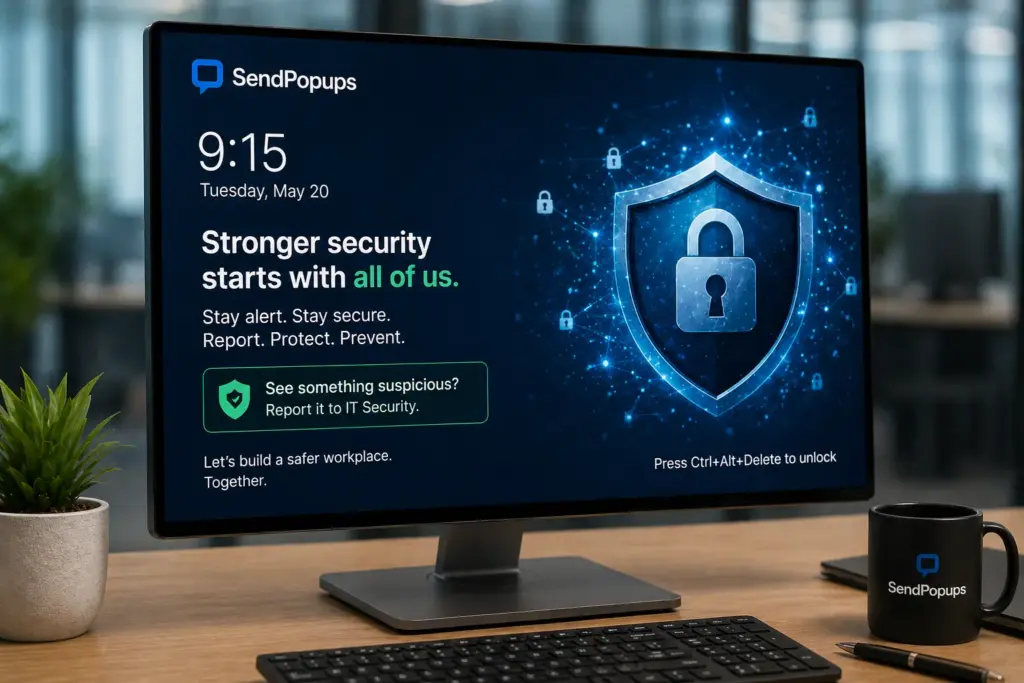
A corporate lock screen appears before an employee logs into their computer and again when they return to an idle device. This makes it one of the most visible places to display important but non-urgent information.
Because employees naturally see it multiple times during the day, it works well as a complementary channel alongside desktop alerts, email, mobile, and other internal communication tools.
Trusted by Teams That Need Better Message Visibility


Send Highly Visible Content with Lock Screen Messaging
SendPopups lock screen messaging helps place your message in front of employees at the start of the workday and throughout the day whenever devices lock again after inactivity.
This makes it useful for broad workforce visibility, including shared spaces and company devices where the message should be seen before employees get back to work.
Positioning note: Lock screen messaging is best for important, non-urgent communication. For urgent alerts, pair it with desktop popups, mobile alerts, SMS, or other faster-interrupt channels.
Publish, Manage, and Target Content with Ease
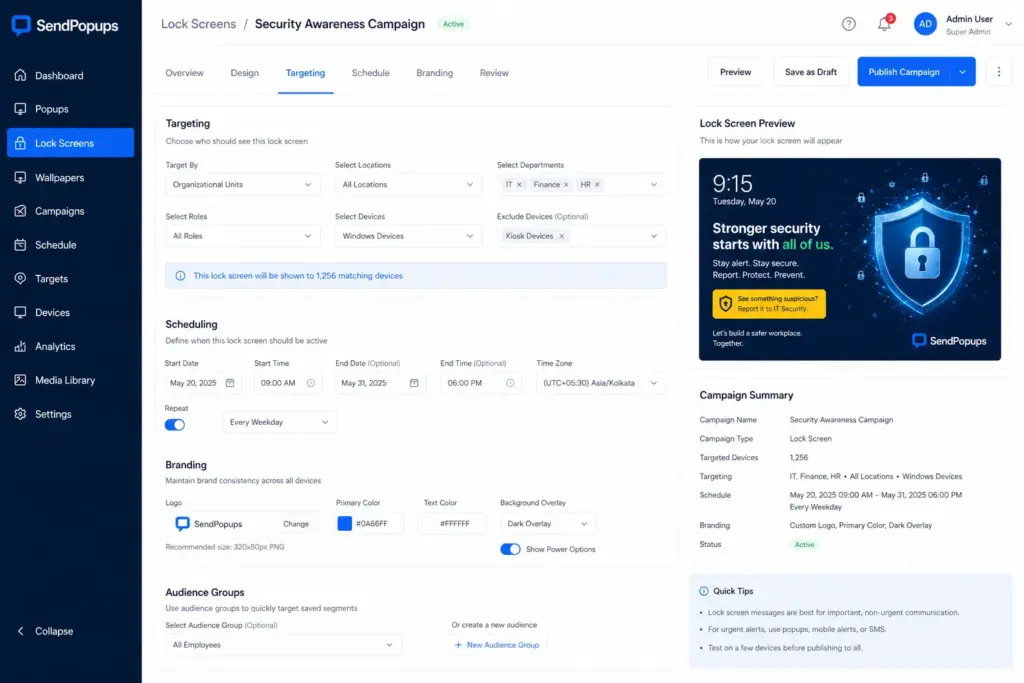
SendPopups can be positioned as a practical alternative to managing corporate lock screens through Windows group policy alone. Internal teams can update visuals centrally, target different employee groups, and manage campaigns without depending on IT for every change.
Ways to Use Lock Screen Messages for Internal Communications
This channel works best for important, non-urgent messages that benefit from repeated visibility during the day.
Company News
Share updates in a visually engaging way using high-quality imagery to highlight achievements, goals, KPI progress, or important projects.
Change Communications
Increase awareness of change initiatives, reinforce key messages, and help staff adapt to new processes or organizational direction.
Incident Communications
Use lock screens as part of a flood-all-channels approach during critical incidents to improve awareness and visibility.
Event Reminders
Promote upcoming training, product launches, social activities, or internal events and remind employees they are approaching.
Behavioral Change
Reinforce expectations around safety, ethics, compliance, wellness, and workplace etiquette through repeated visual reminders.
Countdown Clocks
Build anticipation around launches, campaigns, or major announcements by updating lock screen creatives with daily countdown visuals.
Lock Screen Tool Features
Targeting
Send content to the whole organization, a specific team, a site, a department, or even an individual employee.
Scheduling
Set the date and time in advance for when lock screen content should appear or be updated.
Prioritizing
Ensure your corporate lock screen messages take priority over default or unmanaged content.
Branding
Keep imagery aligned with your brand guidelines for a consistent corporate look and feel.
Rich Content
Use beautiful visuals and image-driven creatives to improve message engagement and recall.
Directory Integration
Use employee directory or AD-style group structures to define audiences and streamline delivery.
Benefits of Lock Screen Messaging for Internal Communications
- High visibility for important but non-urgent corporate messages
- Does not interrupt active productivity
- Improves message recall and retention through repeated exposure
- Requires no extra effort for employees to access the information
- Can support engagement in company activities and campaigns
- Keeps delivering messages even when employees are away and return later
Explore More Tools for Internal Communications
Corporate Screensavers
Reinforce the same message across idle screens with branded full-screen visuals.
Corporate Wallpaper
Set branded desktop backgrounds as a complementary communication channel.
Pop-up Alerts
Use interruptive alerts when employees need to notice something immediately.
Mobile App
Reach employees even when they are away from their desks.
Frequently Asked Questions
A home screen or desktop appears after a user logs in. The lock screen appears before sign-in or when a device is locked and credentials need to be entered again.
Computer lock software manages or customizes the locked-screen experience on a computer, including what users see before they unlock the device.
Common Windows methods include using Ctrl + Alt + Del and choosing lock, or pressing Windows key + L.
Need a More Visible Way to Reinforce Important Internal Messages?
Use SendPopups lock screen messaging to place branded internal communication in front of employees before they sign in and whenever devices return from idle time.
Trusted by Teams That Need Instant Alerts

IT Operations Team, SAIC
SendPopups has transformed how we communicate urgent updates across our teams. Critical alerts now reach everyone instantly, helping us respond faster during time-sensitive situations.

Communications Division, New York State Police
In emergency environments, speed and visibility are essential. SendPopups allows us to deliver immediate on-screen alerts that ensure important information reaches personnel without delay.

Campus IT Services, Vanderbilt University
SendPopups makes campus-wide communication simple and effective. Important announcements and safety alerts appear instantly across devices, ensuring students and staff stay informed.

Technology Operations, FOX
SendPopups helps us distribute urgent updates quickly across our organization. The ability to push instant popup notifications ensures critical messages are never missed.